



通常価格
$6.99
セール価格
$6.99
通常価格

GPSデータは接続したスマートフォンを通じて取得され、動画上にリアルタイムの速度、ルート、標高情報を重ねて表示できます。
受取状況を読み込めませんでした









いいえ。AKASO 360アプリとAKASO 360スタジオはいずれも完全に無料で利用でき、サブスクリプションやアカウント登録は不要です。
アプリまたはスタジオをダウンロードするだけで編集を開始できます。モバイルアプリを使用する場合、Bluetoothと位置情報などの権限は、AKASO 360カメラを検索して接続するためにのみ使用されます。

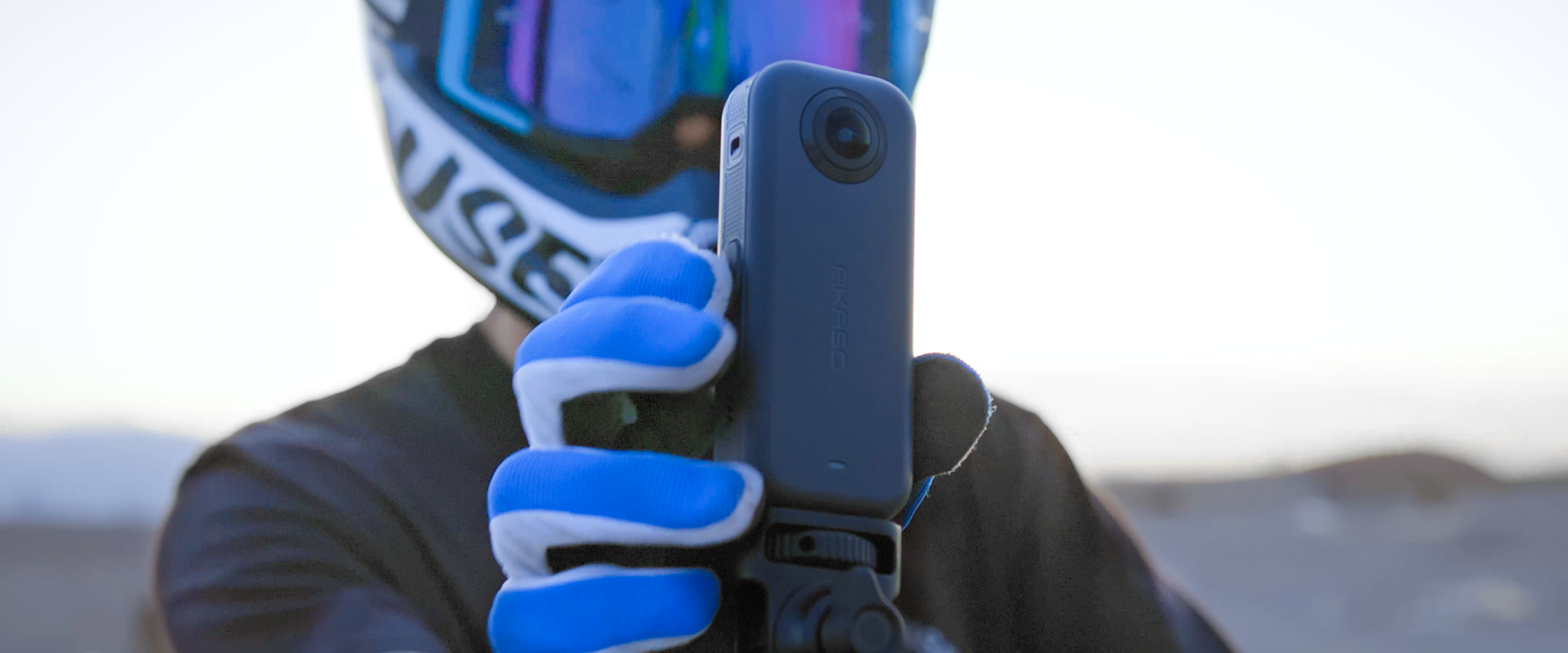
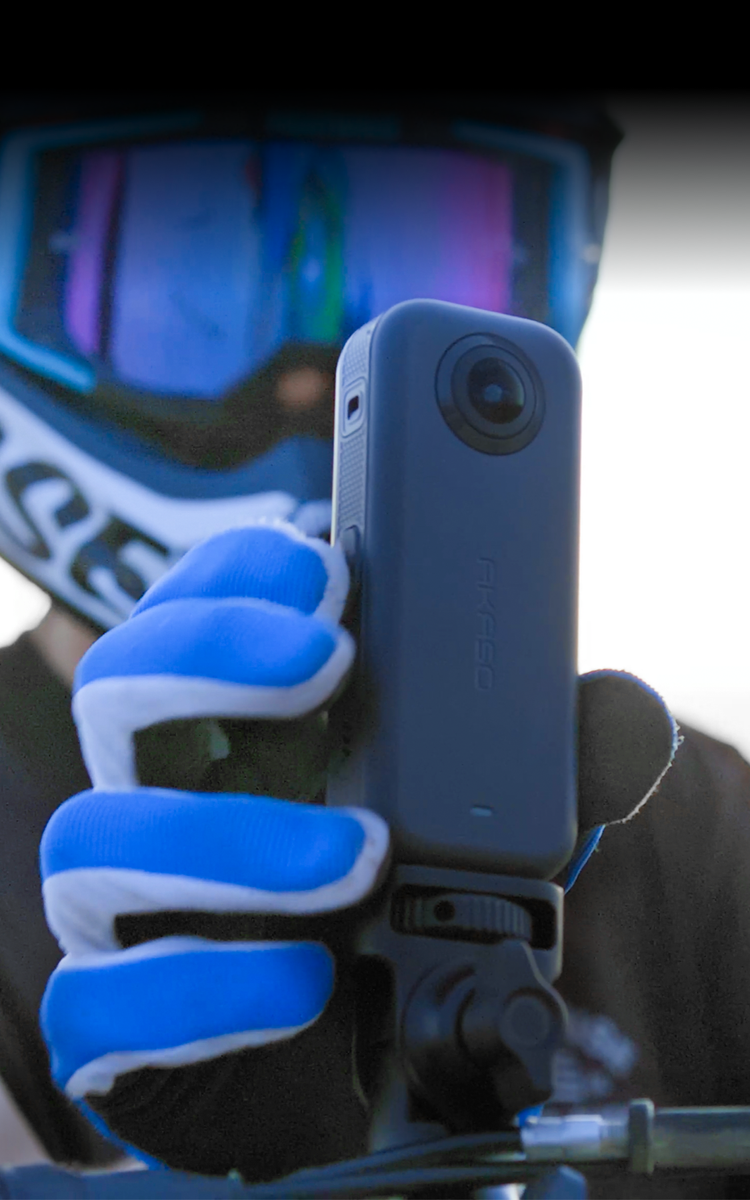
AKASO 360は、カメラの向きを気にせずにライドの全ての瞬間を簡単に撮影できます。
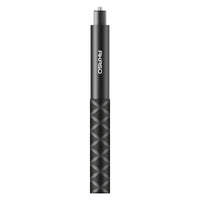
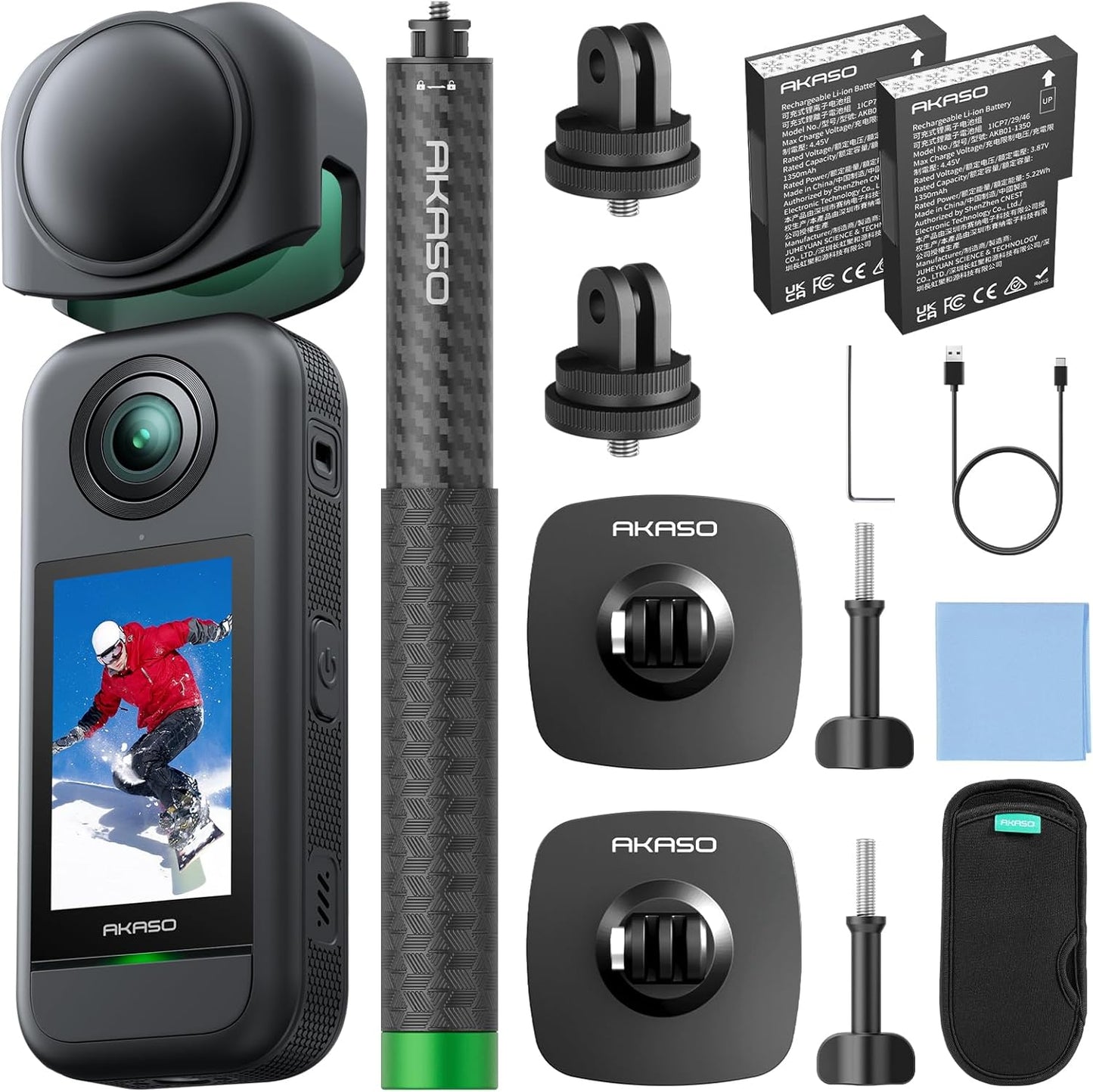
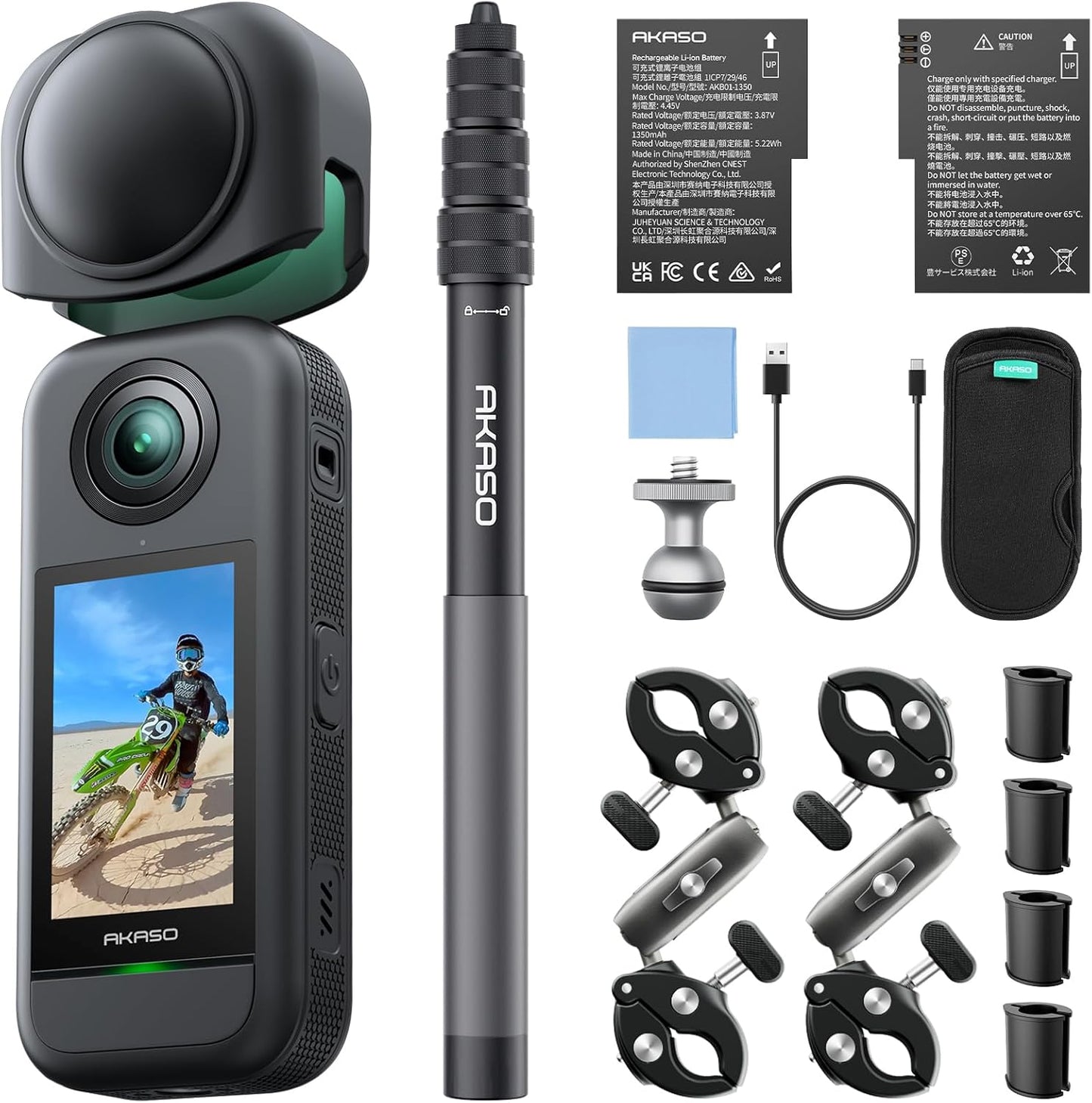
- ヘルメット、ハンドルバー、後部取り付け式セルフィースティックなどの安全なマウントを選び、ライド前に全ての接続がしっかり固定されていることを確認してください。
- 360°モードで記録して全ての角度を捉え、後からAKASO 360 AppまたはStudioを使って映像のフレームを調整できます。
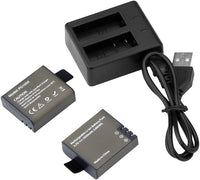
- 長時間のライドに備えて予備バッテリーまたは外部電源を持参してください。
- 毎回のライド前に簡単な安全点検を行い、カメラとマウントが確実に固定されていることを確認してください。
このセットアップにより、まずライドに集中し、編集時に最適な角度を選ぶことができます。
はい。AKASO 360は初心者でも360度動画を簡単に作成できるように設計されています。編集経験は必要なく、AKASO 360アプリまたはAKASO 360スタジオを使用開始するのにアカウント登録は不要です。カメラを接続するだけで編集を始められます。
- 初期設定を完了してカメラを接続してください。
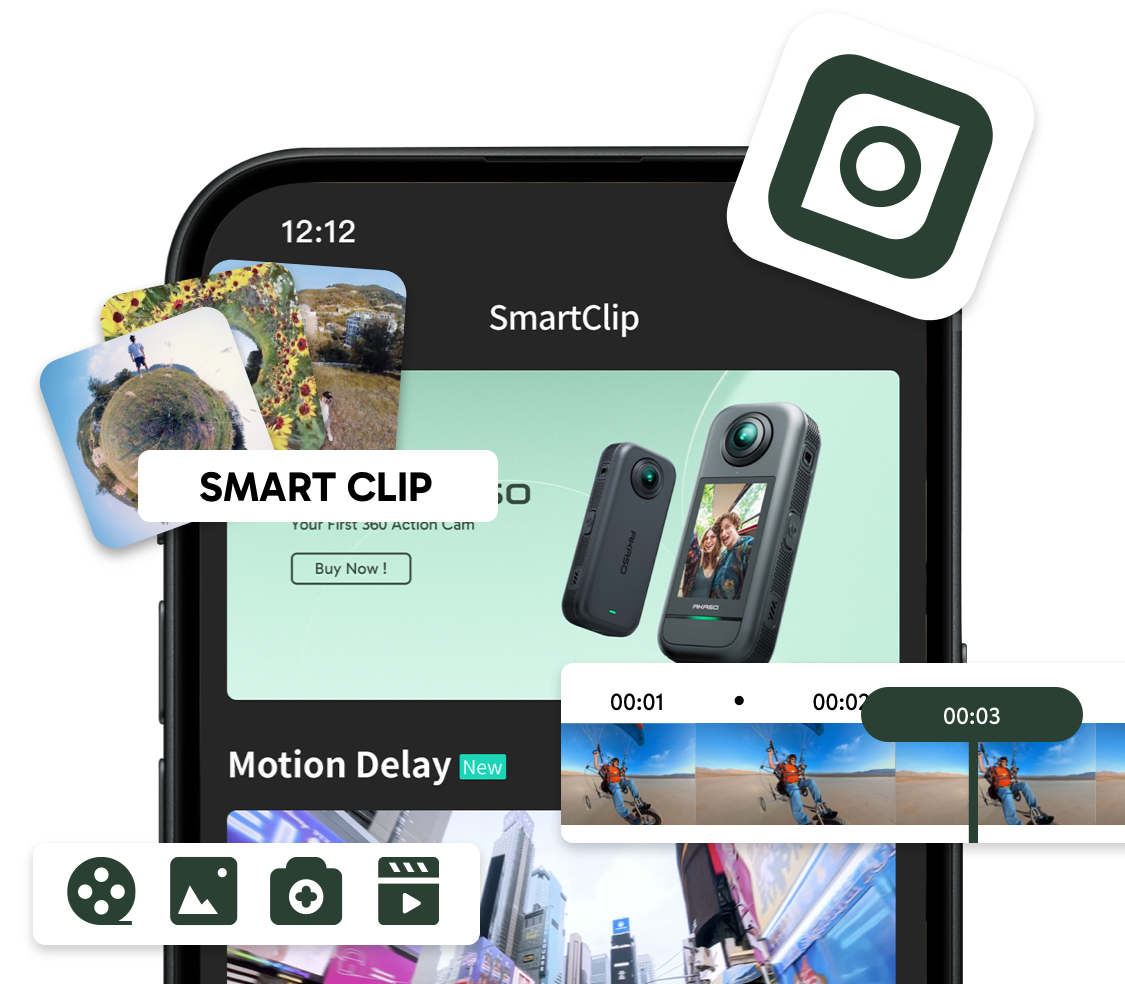
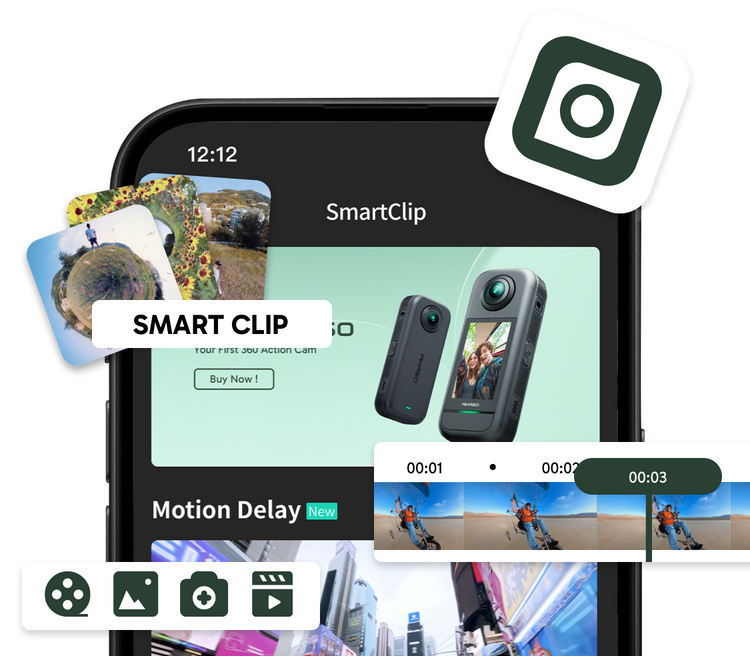
- AKASO 360アプリのSmartClipを使用して、数回のタップで最初の動画を作成できます。
- 準備ができたら、リフレーミング、キーフレーム、AIフォローなどの手動編集機能を探索して、より個性的な動画を作成してください。
- 慣れてきたら、簡単編集とフルマニュアル制御の間をシームレスに切り替えることができます。
360度カメラが初めての方でも、これまで使ったことがない方でも、AKASO 360は急峻な学習曲線なしで作成を始められます。
AKASO 360アプリでは、素材の共有方法に応じて2つの編集モードを提供しています。
- Instagram、TikTok、YouTube、Facebook、Xに動画を共有する
- 従来の2D動画を作成する
- リフレーミング、キーフレーム、AIフォローを使用して最適なカメラアングルを選択する
- どのデバイスでも視聴可能な動画をエクスポートする
- 360度のパノラマ視野をそのまま保持する
- 視聴者がデバイスをドラッグまたは動かしてシーンを探索できるようにする
- 360度動画の再生に対応したプラットフォームにアップロードする
- オリジナルの没入感あふれる録画を保持する
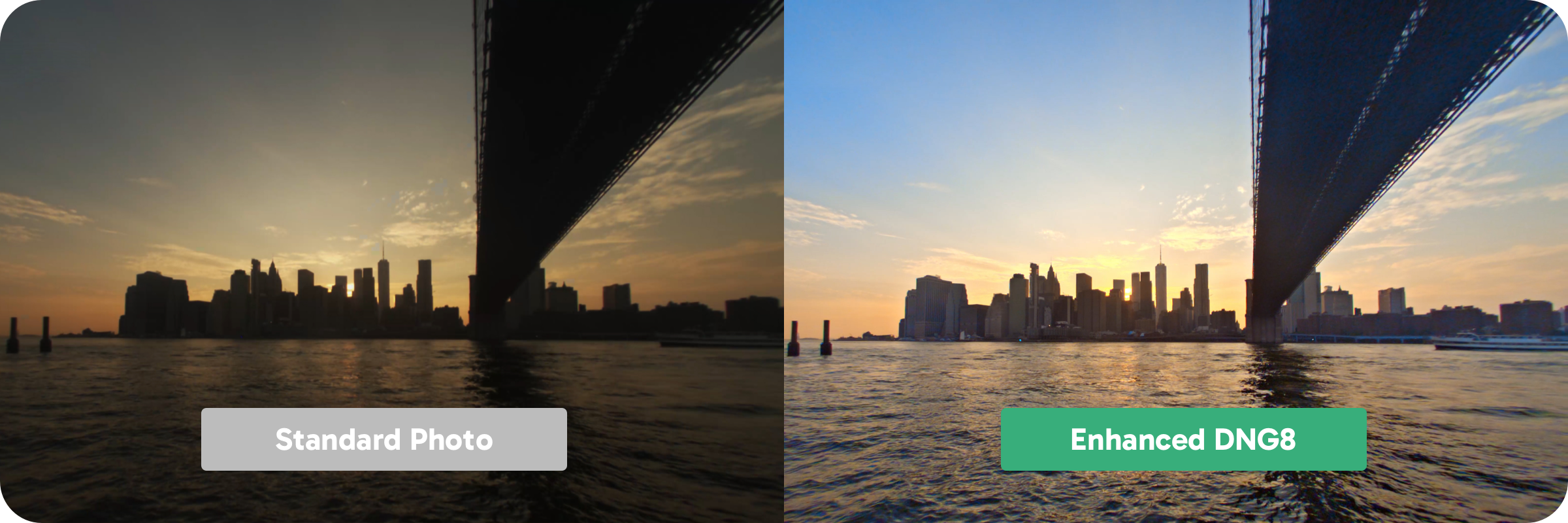
もしあなたの動画が予想通り鮮明でない場合、以下のヒントを試してみてください:
- 利用可能な最高解像度で録画してください。
- できるだけ明るい場所で撮影してください。
- レンズを清潔に保ってください。
- 過度のズームやフレーム調整は避けてください。
- 最高画質の設定でエクスポートしてください。
- SNSでは多少の圧縮が行われることを想定してください。
AKASO 360アプリは、360度の映像を接続し、プレビュー、編集、エクスポートするために互換性のあるモバイルデバイスが必要です。
iOS要件
- iOS 13.0以降
- Apple A11 Bionicチップ以降
---
Android要件
- Android 9.0以降
- Kirin 980以降
- Snapdragon 845以降
- Exynos 9810以降
- Google Tensorシリーズ
最適な体験を得るには、これらの要件を満たすか超えるデバイスを使用してください。低い仕様のデバイスでは、プレビュー、編集、またはエクスポートのパフォーマンスが低下する場合があります。
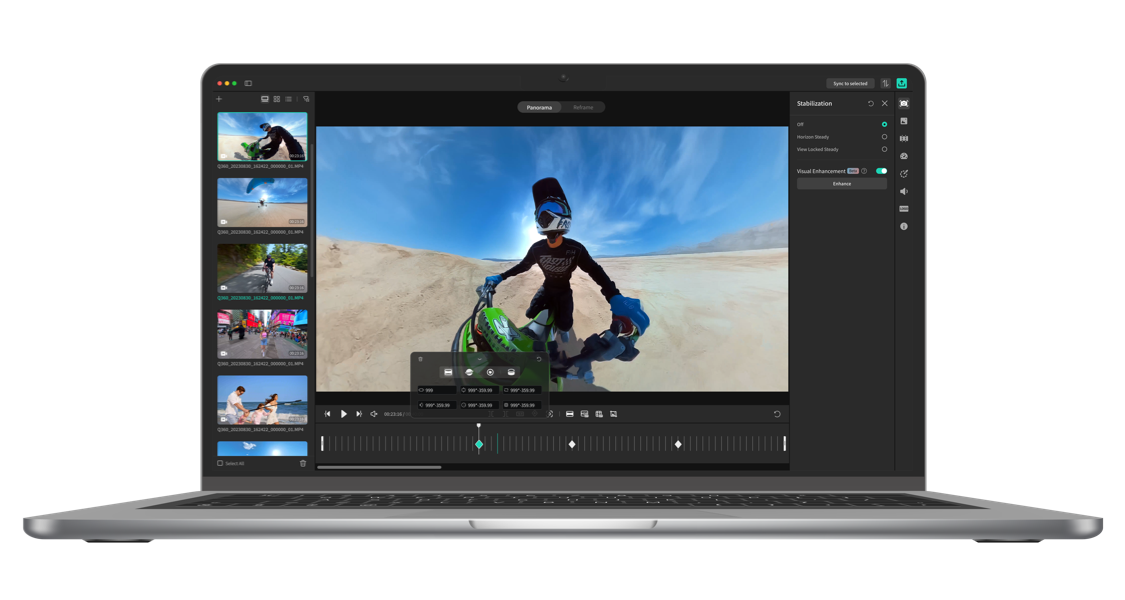
AKASO 360 Studio はデスクトップ編集ワークフロー向けに設計されています。スムーズなプレビューとレンダリングのパフォーマンスのため、お使いのコンピュータが以下の要件を満たすようにしてください。
Windows
必須要件:
- Windows 10 (64ビット) バージョン22H2以降
- Intel 第6世代CPU以降 (またはAMD同等品)
- 8GB RAM
- 4GB GPUメモリ
- 500GB SSD
推奨要件:
- Intel 第7世代CPU以降 (またはAMD同等品)
- HD再生用に16GB RAM
- 4K映像以上用に32GB RAM
- 8GB GPUメモリ
----
Mac
必須要件:
- macOS Monterey 12以降
- Intel 第6世代CPU以降 (またはAMD同等品)
- 8GB RAM
- 500GB SSD
推奨要件:
- Apple Silicon M1 Pro、M1 Max、M1 Ultra、またはそれ以降
- 16GB ユニファイドメモリ
1. AKASO 360カメラをアプリに接続してください。
2. カメラからスマートフォンに映像をダウンロードしてください。
3. アルバムセクションで映像を開いてください。
4. クリップをプレビューして編集を開始してください。AKASO 360アプリでは、構図変更、エフェクトの適用、画像設定の調整、スマートフォンから直接動画をエクスポートできます。
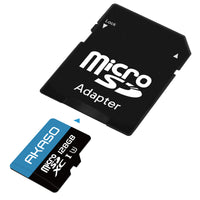
信頼性の高い録画とファイル保存を確保するために、microSDカードは以下のすべての要件を満たす必要があります。
スピードクラス: UHS-I V30、UHS-I U3 以上
容量: 最大512GB
ファイルシステム: exFAT
これらの要件を満たさないカードは、録画の中断、ファイル破損、インポート失敗、またはSDカードエラーが発生する原因となる場合があります。
センサーサイズ: 1/2インチ
絞り: f/2.25
等価焦点距離: 7.6mm(35mm換算)
最短撮影距離: 50 cm
安全なステッチング距離: 30 cm